How to Build a Freelance Business Backup & Disaster Recovery System
Every freelancer is one laptop theft, ransomware attack, or hard drive failure away from losing years of client work, unpaid invoices, signed contracts, and project files. A proper backup system costs less than one hour of your billable rate.
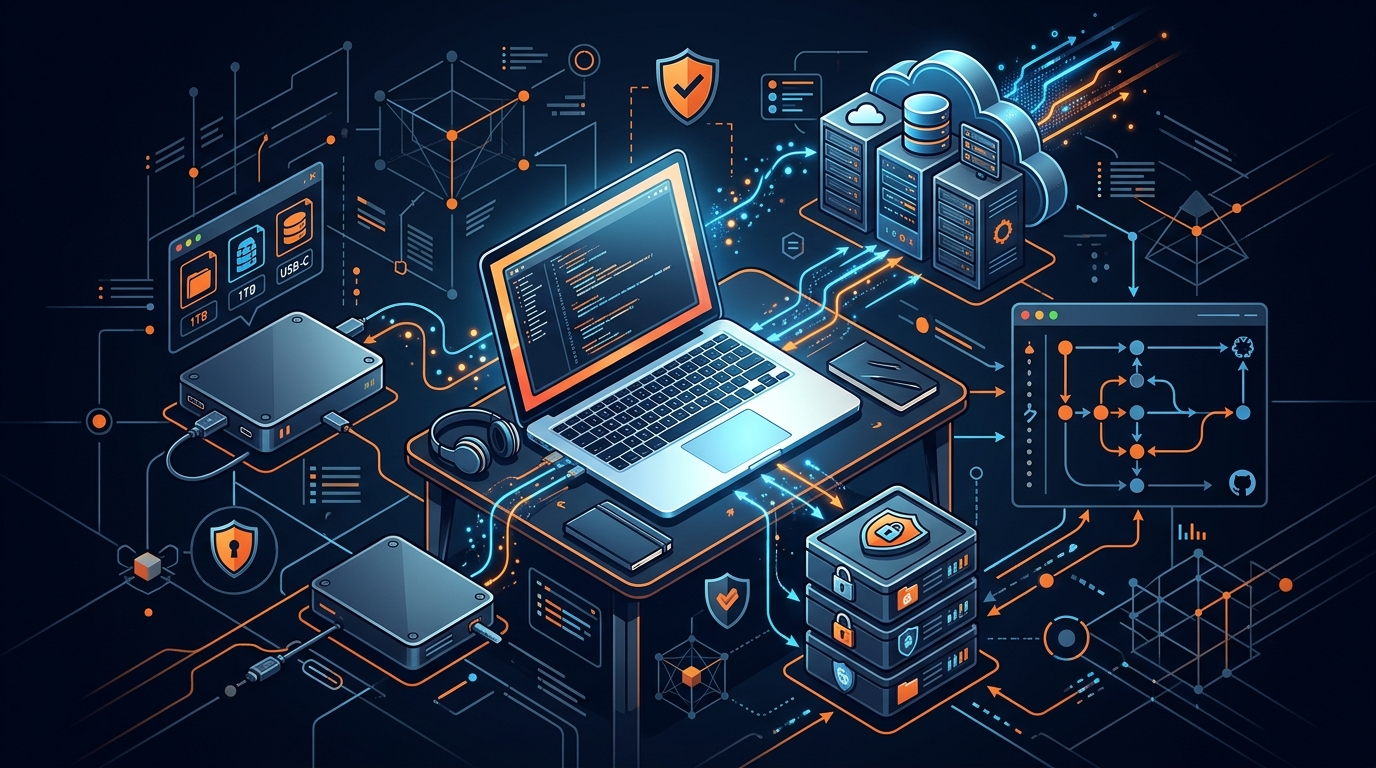
TABLE OF CONTENTS (29 SECTIONS)TAP TO EXPAND
- The Freelancer’s Catastrophic Data Loss Scenarios
- Three Concepts to Understand Before Building Your System
- Backup ≠ Synchronization
- Backup ≠ Version Control
- Backup ≠ Disaster Recovery
- The 3-2-1 Backup Strategy Explained
- What Needs to Be Backed Up
- Active Project Files
- Source Code
- Design Files
- Business Documents
- Financial Records
- Credentials and Recovery Information
- Client Deliverables Archive
- Layer 1: Local Backup (External Drive)
- macOS: Time Machine
- Windows: File History + System Image
- Layer 2: Cloud Backup (Automated Continuous Backup)
- Backblaze Personal Backup
- Cloud Sync Services as Supplementary Protection
- Layer 3: Source Code Version Control
- GitHub / GitLab
- What Git Does Not Cover
- Layer 4: Encrypted Archives for Critical Documents
- How to Create Encrypted Archives
- Disaster Recovery: The Restoration Plan
- Minimum Viable Backup System
- Recommended Full 3-2-1 System for Freelancers
- Disaster Recovery Checklist
The Freelancer’s Catastrophic Data Loss Scenarios
Consider the realistic threats to your business data:
- Laptop stolen at a coffee shop or airport: everything on the device is gone instantly.
- Hard drive fails: mechanical drives fail without warning; SSD flash cells corrupt; this is not rare.
- Ransomware: encrypts every file on your machine and demands payment for the key—often hitting cloud sync simultaneously.
- Accidental deletion: you permanently delete the wrong project folder, or overwrite a file you needed.
- Cloud account lockout: Google, Dropbox, or your primary cloud storage account is compromised or suspended, cutting off access.
- Fire or flood: physical destruction of your home or office.
- Software corruption: design files, databases, or project files become corrupted silently over time.
None of these scenarios require bad luck. They require only that you have no backup—and most freelancers, even experienced ones, do not have a comprehensive backup strategy in place.
The cost of data loss is not just the technical inconvenience of rebuilding. It is missed client deadlines, lost invoices (unrecoverable payments), lost contracts (unenforceable agreements), and the professional reputation damage of telling a client their deliverables are gone.
Three Concepts to Understand Before Building Your System
Backup ≠ Synchronization
Synchronization (Google Drive, Dropbox, OneDrive) mirrors your files between your device and the cloud in near real-time. It is designed for access and collaboration, not protection.
If you delete a file on your laptop, the sync service deletes it from the cloud immediately. If ransomware encrypts your files, the encrypted versions replace the originals in your sync folder within minutes. Cloud sync services have limited version history (typically 30 to 180 days depending on plan), but they are not designed to be relied upon as a primary backup mechanism.
Backup maintains independent, time-stamped copies of your data in a location that your primary device cannot directly overwrite. Dedicated backup tools like Time Machine, Backblaze, and APFS snapshots decouple the backup from the live file state.
Backup ≠ Version Control
Version control (Git, GitHub, GitLab) tracks code changes with full history. It is an excellent tool for managing software projects, but it is:
- Not designed for binary files: Large design assets (Figma exports, PSD files, video renders) are not suitable for Git without Git LFS (Large File Storage) and careful configuration.
- Not a general-purpose backup: Version control requires you to actively commit changes. Uncommitted work is not versioned. And Git does not help you when your operating system fails to boot.
Version control is a critical component of a complete backup architecture—but it is not a replacement for backup.
Backup ≠ Disaster Recovery
Backup is the insurance policy. Disaster Recovery is the plan for what happens when you actually need to use it.
A backup system without a tested recovery procedure is incomplete. You must know: where your backups are, how to restore them, how long restoration takes, and what the priority order is when you need to get back to work urgently.
The 3-2-1 Backup Strategy Explained
The 3-2-1 rule is the gold standard of backup architecture, recommended by cybersecurity professionals and IT departments globally:
- 3 copies of your data (your live files + 2 backup copies)
- 2 different storage media (e.g., internal drive + external drive; or internal + cloud)
- 1 copy offsite (physically separate from your primary location)
For a freelancer, this translates practically:
| Copy | Storage Type | Location | Example |
|---|---|---|---|
| Live copy | Internal SSD | Your laptop | Project files, working documents |
| Local backup | External hard drive | Your home/office | Time Machine or manual backup drive |
| Offsite backup | Cloud backup service | Remote data centers | Backblaze Personal Backup |
The offsite copy is what saves you from fire, theft, or any physical event that could simultaneously destroy your laptop and your external drive if both are at the same location.
What Needs to Be Backed Up
Many freelancers back up their project files and nothing else. A complete backup system covers:
Active Project Files
All client deliverables in progress: design files, code repositories, exported assets, documentation.
Source Code
All Git repositories, even for client projects that are also on GitHub or GitLab. Never rely solely on a third-party platform as your only copy of source code. Local clones on your machine + cloud backup provides the backup layer.
Design Files
Native format files (.fig, .psd, .ai, .sketch, .afdesign) are often much larger than exported assets. They are also the hardest to recreate. Ensure cloud backup covers your design project folder explicitly.
Business Documents
Signed contracts, proposals, project briefs, change request approvals, client communication archives. These are legally significant documents.
Financial Records
Invoices (sent and paid), expense records, bank statements, tax filings, payment confirmation emails. Loss of these records can create serious financial and legal complications during tax audits or payment disputes.
Credentials and Recovery Information
- Encrypted password manager vault export (as an emergency offline copy)
- 2FA recovery codes
- Domain and hosting account information
- SSH keys and GPG keys used for development
For credentials specifically, review the freelance password management guide and the 2FA and authentication guide for best practices.
Client Deliverables Archive
Final delivered files for completed projects. Clients sometimes return months or years later asking for “the original files.” Maintaining an organized archive of delivered assets protects you and demonstrates professionalism.
Layer 1: Local Backup (External Drive)
The simplest and fastest recovery option is a local backup to an external hard drive connected to your machine.
macOS: Time Machine
Apple’s built-in Time Machine creates automatic hourly snapshots to a connected external drive, daily snapshots for the past month, and weekly snapshots beyond that. It is zero-configuration once set up and allows you to restore individual files, folders, or your entire system.
Setup: Connect an external drive → System Settings → Time Machine → select the drive. Done.
Recommended drive: An external SSD or hard drive at least 2x the size of your internal storage. For a 1TB internal drive, a 2TB external drive provides comfortable backup storage with historical versions.
Windows: File History + System Image
Windows File History provides similar automatic incremental backup to an external drive. Additionally, Windows includes a system image backup tool for full-disk restoration.
Important note: Local backup alone fails if your home or office is physically damaged or robbed. Local backup is Layer 1, not a complete solution.
Layer 2: Cloud Backup (Automated Continuous Backup)
Cloud backup services continuously monitor your files and upload changes to remote data centers. They are the offsite copy in your 3-2-1 architecture.
Backblaze Personal Backup
Backblaze Personal Backup is widely considered the best value cloud backup service for individuals and freelancers. It backs up your entire computer—all files, all folders—continuously and automatically.
Key features relevant to freelancers:
- Unlimited storage: No cap on the amount of data backed up, which matters for video projects and large design libraries.
- 30-day version history on the standard plan (extendable for a fee), allowing recovery from ransomware that may have been active for weeks.
- File restore options: Restore via browser download or request a physical hard drive shipped to you (useful for large data recovery).
- Continuous backup: Runs in the background, backing up new and modified files whenever your computer is connected to the internet.
Backblaze Personal Backup pricing is structured as a monthly or annual subscription. Verify current pricing at Backblaze’s website.
Important distinction: Backblaze Personal Backup is separate from Backblaze B2 (their developer cloud storage API). Personal Backup is the consumer product designed for exactly this use case.
Cloud Sync Services as Supplementary Protection
Google Drive, Dropbox, and OneDrive are not backup tools, but they provide supplementary version history (30 to 180 days depending on plan) that can help with accidental deletion. As noted earlier, do not rely on these as your primary backup mechanism.
For cloud storage evaluation, see the cloud storage comparison for freelancers.
Layer 3: Source Code Version Control
For all code-based work, a Git repository with remote hosting provides an additional, independent copy of your source code with complete version history.
GitHub / GitLab
Use GitHub or GitLab to host all your repositories, even for client projects where the client does not have a Git account.
Best practices:
- Commit frequently—at minimum at the end of every working session.
- Push to the remote repository at the end of every day. Uncommitted and unpushed work is not protected.
- For client projects that require confidentiality, use private repositories.
- Maintain your own remote backup of client repositories, separate from any repository access you have on the client’s own GitHub organization.
What Git Does Not Cover
Git is excellent for tracking code changes but is not designed for:
- Large binary files (design exports, video renders)—these should be in cloud backup and cloud storage
- Application databases (need separate database backup procedures)
- Environment configuration that may contain secrets (use a password manager)
Layer 4: Encrypted Archives for Critical Documents
For your most important business documents—signed contracts, tax records, recovery codes, financial statements—create encrypted compressed archives stored in multiple locations.
How to Create Encrypted Archives
On macOS and Windows, you can create encrypted ZIP archives using built-in tools or free utilities like 7-Zip with AES-256 encryption.
Store encrypted archives in:
- Your cloud storage (Google Drive, Dropbox) for access
- Your cloud backup (Backblaze) for protection
- A physical USB drive stored offsite (a parent’s home, a safety deposit box) for extreme scenarios
Update these archives quarterly or whenever significant new documents accumulate (new signed contracts, new tax filings).
Disaster Recovery: The Restoration Plan
A backup system is incomplete without a tested restoration plan. Know the answers to these questions before a disaster, not after:
Priority order for getting back to work:
- Restore credentials first (password manager vault, 2FA recovery codes) so you can access all your accounts.
- Restore active project files for any client work with current deadlines.
- Restore business documents (contracts, invoices).
- Restore full system backup.
Recovery time estimates:
- Restore specific files from Backblaze: 30-60 minutes (download)
- Full system restore from Time Machine (macOS): 2-6 hours
- Full system restore from Backblaze Physical Drive (Firehose): 1-2 days (shipping time)
Test your backup system quarterly: Restore a random file from each backup source to confirm it works. Backup systems can silently fail.
Minimum Viable Backup System
If you implement nothing else, implement this immediately:
-
External drive + Time Machine (macOS) or File History (Windows): Plug in an external drive and enable automatic backup. Cost: one-time hardware purchase (typically $50-$100 for a 2TB drive).
-
Backblaze Personal Backup: Install and configure automated cloud backup for your entire machine. Verify current pricing at Backblaze’s website. This is your offsite copy.
-
Git with remote hosting: Push all code repositories to GitHub or GitLab daily. Free for private repositories.
-
Password manager with emergency export: Ensure your password manager vault is properly backed up or exportable, and store recovery codes for all 2FA-enabled accounts.
Total recurring cost: primarily the Backblaze subscription. External drive is a one-time cost.
Recommended Full 3-2-1 System for Freelancers
| Layer | Tool | What It Covers | Frequency |
|---|---|---|---|
| Live working copy | Internal SSD | All current project files | Continuous |
| Local backup (L1) | External drive + Time Machine/File History | Full system, all files | Hourly (automatic) |
| Cloud backup (L2 + Offsite) | Backblaze Personal Backup | Full machine, version history | Continuous (automatic) |
| Code version control | GitHub / GitLab | All source code repositories | Daily push minimum |
| Business documents | Encrypted archive in cloud storage | Contracts, invoices, tax records | Quarterly refresh |
| Credentials | Password manager + recovery codes | All passwords, 2FA secrets | Updated continuously |
This architecture ensures that no single failure—hardware failure, theft, ransomware, physical disaster, cloud account lockout—can cause permanent, unrecoverable data loss.
Disaster Recovery Checklist
Run through this checklist now, before you need it:
- External backup drive connected and actively backing up (verify last backup timestamp)
- Backblaze Personal Backup installed and showing “Backed up” status
- All Git repositories pushed to remote (GitHub/GitLab) within the last 24 hours
- Password manager emergency kit / recovery codes stored securely offline
- 2FA recovery codes saved in password manager for all critical accounts
- Encrypted archive of key business documents created and stored in cloud + offline
- Recovery procedure documented: you know exactly what to do if your laptop is stolen today
- Backup restore test performed in the last 90 days
- Client deliverables archive organized and backed up
The best time to implement a backup system is before you need it. The second-best time is right now.
WHAT WE APPRECIATED (PROS)
- ✓A proper 3-2-1 system protects against all single points of failure simultaneously
- ✓Automated backup runs continuously without requiring daily manual action
- ✓Cloud backup ensures offsite protection even if your home or office is physically damaged
- ✓Version history in cloud backup and Git allows recovery from accidental file corruption
DRAWBACKS & FRICTION (CONS)
- ✕Initial setup requires several hours to configure all backup layers correctly
- ✕Backup systems require periodic restore testing to confirm they actually work
- ✕Large design files and video projects can be expensive to store in cloud backup services
How to Build a Freelance Business Backup & Disaster Recovery System Rating Breakdown
All freelancers—regardless of technical background—who depend on their computer and files to run their business and need protection against hardware failure, theft, ransomware, and accidental deletion.
The 3-2-1 backup strategy—3 copies of your data, on 2 different media types, with 1 offsite copy—is the minimum viable protection for any freelancer. Implementing it with Backblaze Personal Backup, an external drive, and Git version control covers the vast majority of realistic failure scenarios for under $10 per month.
EVALUATION METRICS
Speed of setup, friction in daily operations, and intuitive mental model for non-enterprise users.
Utility of capabilities without unnecessary enterprise bloat that slows down solo execution.
Return on investment for a single seat, clear billing tiers, and fair feature gates.
Uptime track record, offline resilience, and friction-free portable data export.
Specific suitability for client collaboration, single-seat economics, and lean overhead.
Frequently Asked Questions
What is the difference between backup, synchronization, and version control?+
Synchronization (Google Drive, Dropbox) mirrors your files to the cloud in real time—but if you accidentally delete a file or ransomware encrypts your data, the sync immediately propagates that deletion or encryption to the cloud. A proper backup system maintains independent historical snapshots that cannot be instantly overwritten by a local change. Version control (Git) tracks code changes with full history but is not a general-purpose backup tool for non-code files like design assets, invoices, and documents.
Is cloud synchronization like Google Drive or Dropbox the same as a backup?+
No. Cloud sync is not a backup. Sync mirrors your current file state—whatever happens locally is immediately reflected in the cloud. If a file is deleted, encrypted by ransomware, or corrupted, the sync service propagates that change. True backup systems maintain independent, time-stamped snapshot copies that cannot be modified by local changes. Use sync for collaboration and access; use dedicated backup for data protection.
How often should I test my backup system?+
Restore testing should happen at minimum quarterly. Pick a random project file, a specific invoice, and a code repository and confirm you can successfully restore them from each backup source. An untested backup system has an unknown reliability rate—you only find out it does not work at the worst possible moment.

Freelance Tool Guide Team
The editorial team behind Freelance Tool Guide, independently researching and testing software for freelancers and small teams.
More Independent Software Analyses
Best Cloud Storage for Freelancers: Google Drive vs Dropbox vs OneDrive
Which cloud storage provider is best for freelance asset storage, delta sync speeds, and painless client file sharing? We compare Google Drive, Dropbox, and OneDrive.
Best Password Managers for Freelancers in 2026
Handling client credentials across staging servers, CMS logins, and API keys? Compare the best zero-knowledge password managers for solo contractors and developers.
How to Set Up a Zero-Maintenance Freelance Hosting Stack
Stop rebooting client Linux servers on weekends. Learn how freelance web developers use Vercel, Netlify, and Cloudflare to build zero-maintenance hosting stacks.